
Track what each shoot costs
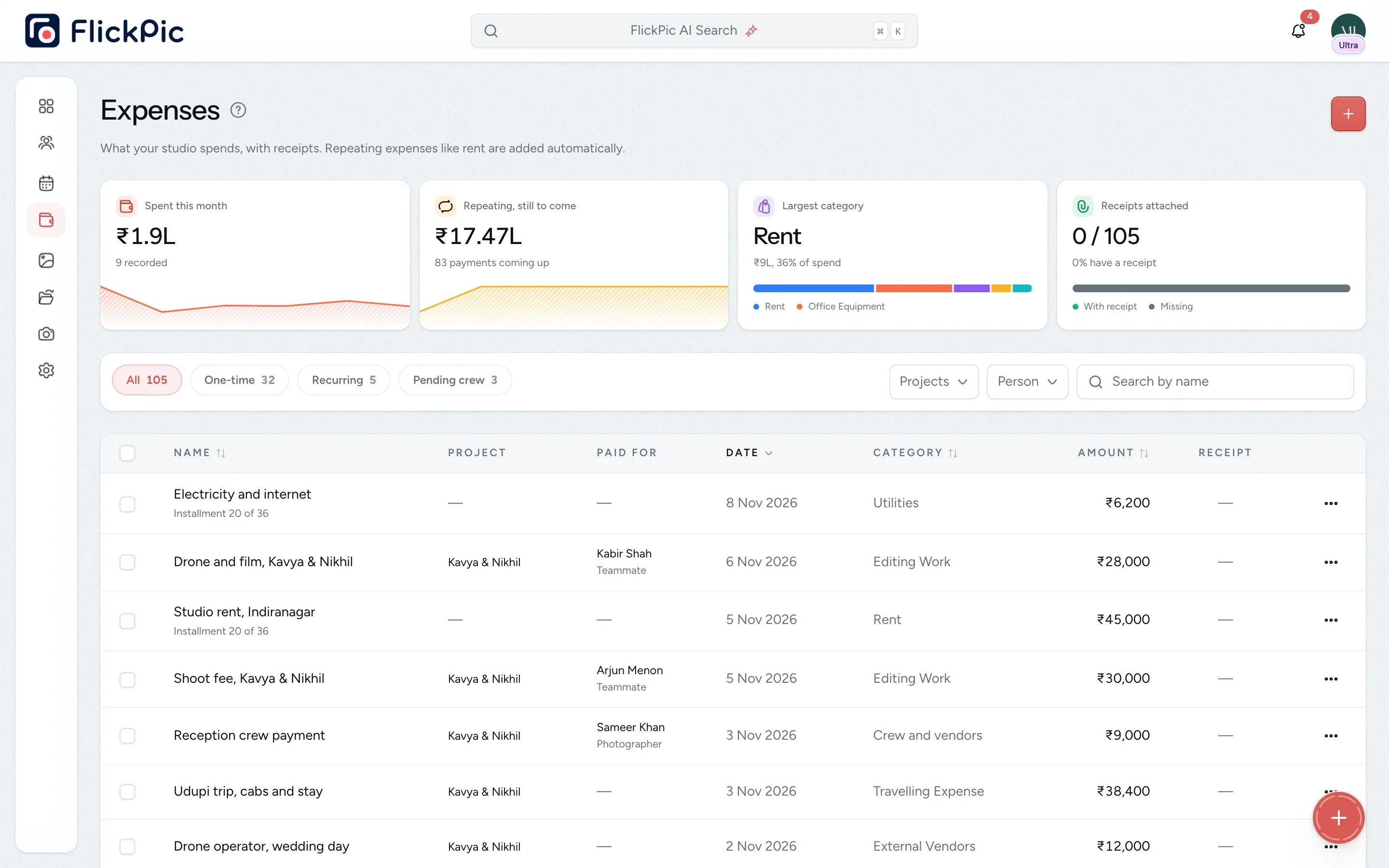
Record each cost with its receipt and category, and link it to a shoot if it was for one. You can see what every job cost and where the rest of your money goes.
Replaces A receipts folder and a spreadsheet
The margin on every shoot
All of this is available today
- Expenses with receipts
- Photography categories
- Linked to a project
- Paid to each person
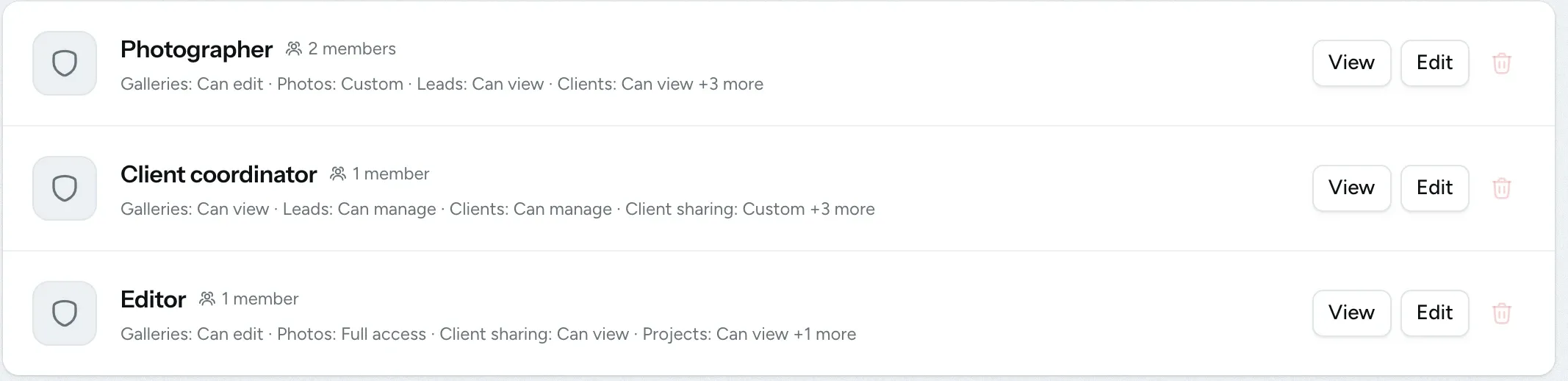
- Expense permissions
- Recurring expenses
- Rent, EMIs and salaries
- Crew rates as expenses
- Project profit and margin
- Yearly profit and loss
- Earnings link for each person
What Expenses does
-
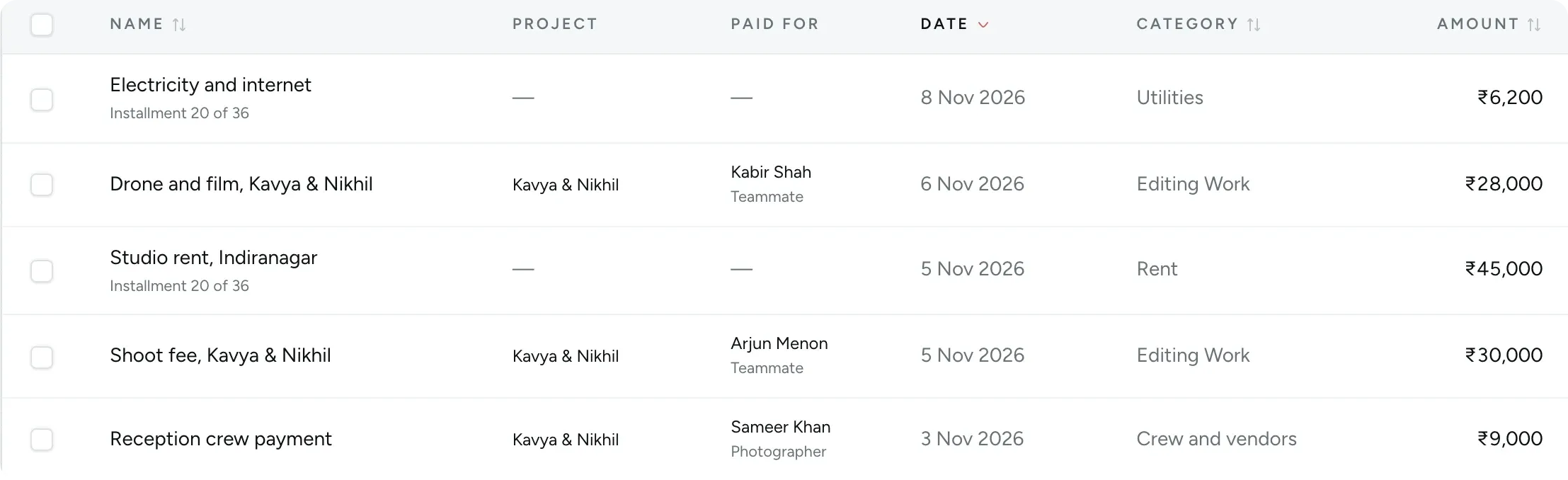
Every expense with its category and receipt
Record what you paid, who you paid and how, and the project it was for, if any. The list starts with this month's spending and your largest category.
- Use the default photography categories or add your own
- Filter by project, category, payment method or date
- See what you've paid each person
-
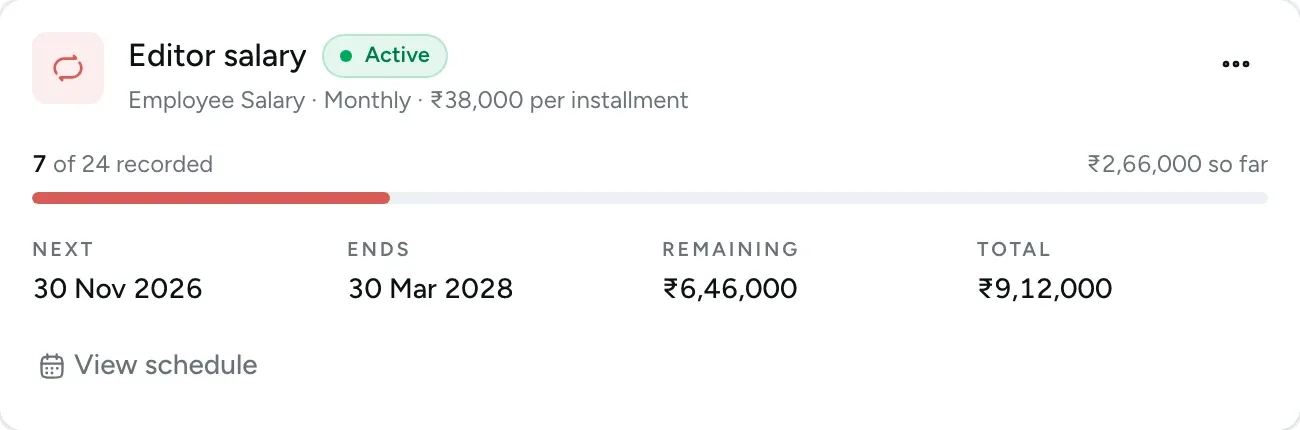
Recurring costs such as rent and EMIs
Set how often a cost repeats and how many payments it has. Each payment is added on its due date, and the studio owner gets an email.
- Link salaries to the person being paid
- Pause, resume or stop at any time
- View the months ahead on a chart
-
Expenses linked to the project
Add a cost from the project or from the finance page, and it counts towards that job either way. Crew rates are included once you mark them as paid.
- See the total cost of each project
- Expenses stay linked when you edit them
- Unpaid crew are listed separately
-
Control who sees the totals
You decide who can add expenses and who can see the studio's totals. A teammate can record a bill without seeing what the whole studio spends.
- Separate permissions to view expenses, add them and see reports
- Financial cards are hidden from their dashboard
- Every change is logged
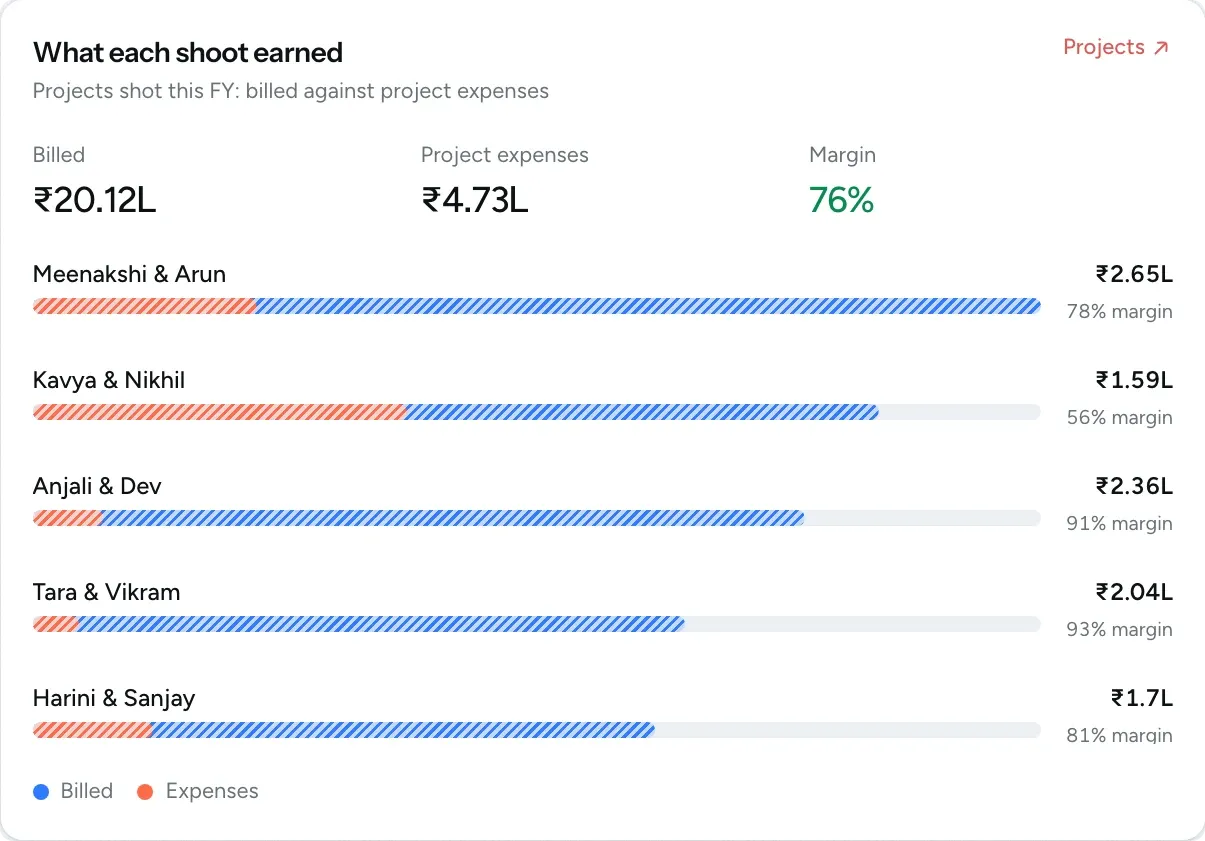
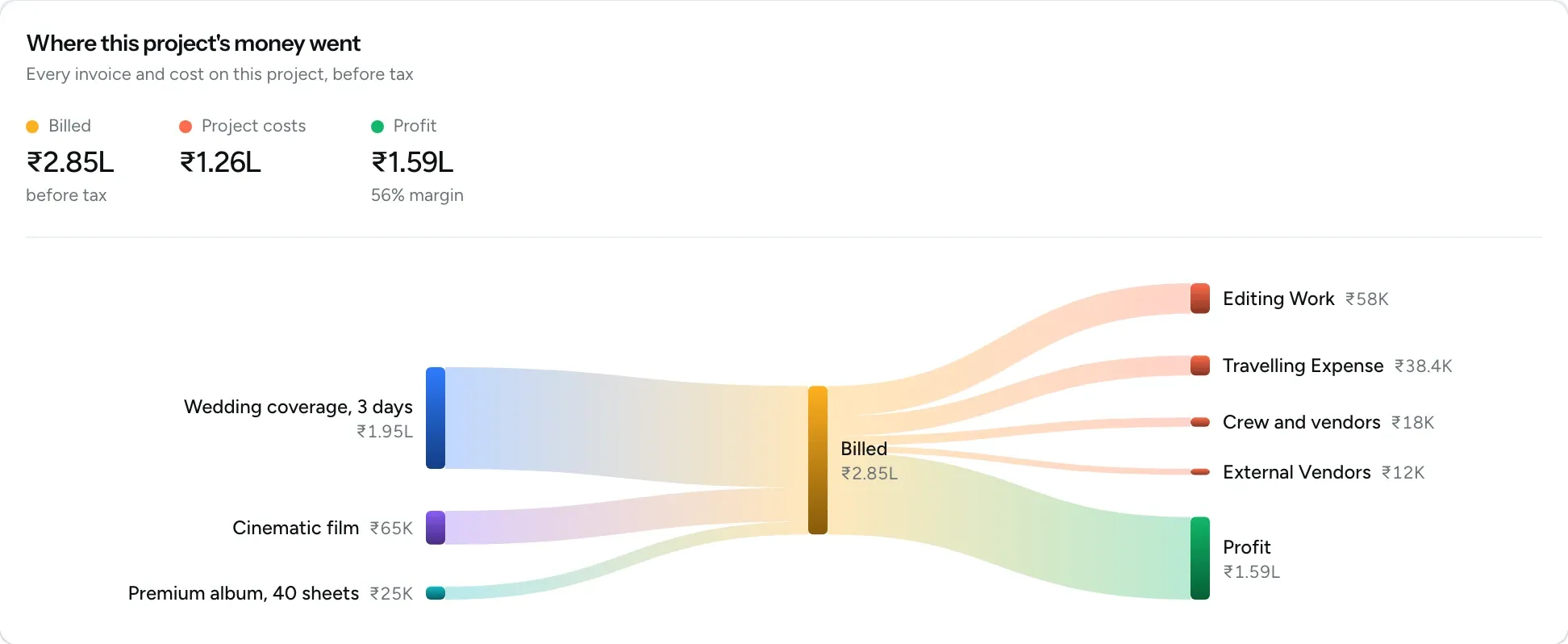
See what each project earned after expenses
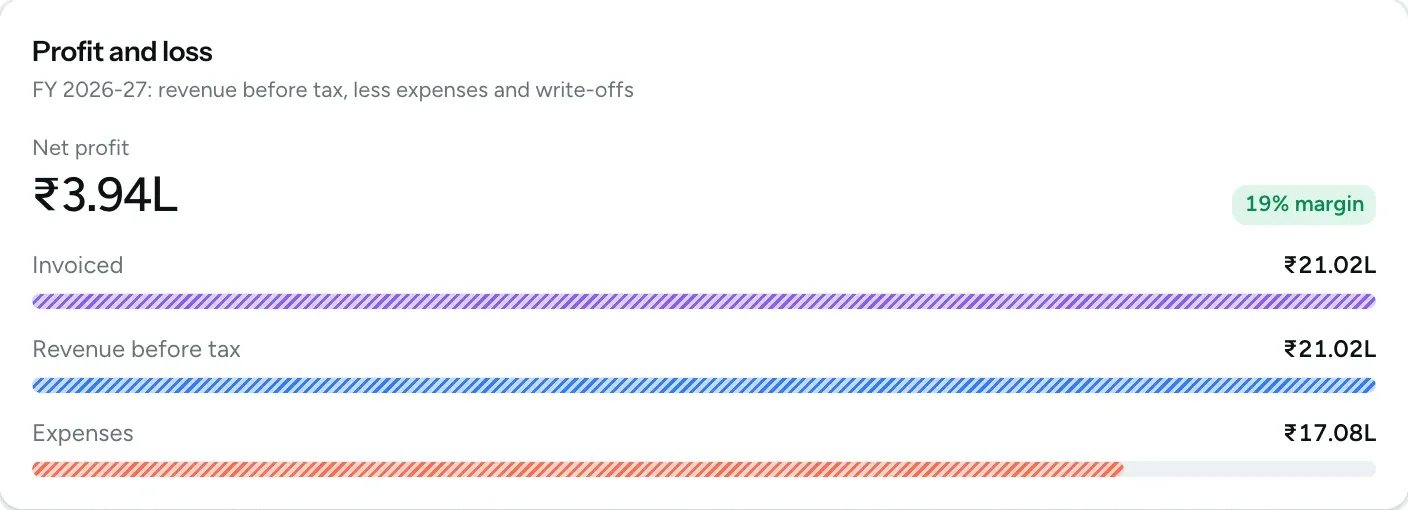
Each project shows how much you billed, how much you spent and how much profit you kept. You can also see your earnings and expenses across all projects in your yearly profit and loss report.
- Profit and margin for every project
- Every package and cost shown on one chart
- Your net profit and margin for the year
Questions about expenses
Questions studios often ask before they start using this feature.
Email us another question-
Yes. Choose the photographer, vendor or teammate under Paid for, and link the project as well. The expense then counts towards that project's costs and towards the total you have paid that person.
-
Yes. They receive a message with the amount, what it was for, the project and the date, along with a private link to all their payments. You can turn these messages off in your notification settings.
-
Only their own payments, with the date, category, project and amount of each. Expense names, notes and receipts stay hidden. The link opens without signing in, so ask them to keep it private. You can turn the link off at any time.
-
When you set a photographer's rate on a project, it shows as pending. When you mark it as paid, FlickPic adds it to the project as an expense. Until then, it doesn't count towards the project's costs.
-
Expenses you added stay in your finance records. Pending crew payments are removed from the pending list, and they come back if you restore the project.
Experience FlickPic
Bring a real enquiry to a free 30-minute call. We'll take it all the way to a client gallery in FlickPic with you and answer your questions along the way.