
Plan and manage every project
A project is created as soon as a client books. Assign crew, equipment and vendors to each event day, and keep track of what the job costs.
Replaces Shared spreadsheets and group chats
What your client sees
All of this is available today
- Projects board
- Separate boards by kind of work
- Crew per event
- Project coordinator
- Crew clash warnings
- Vendors per event
- Equipment per shoot
- Project expenses
- Projects calendar
- Year ahead
- Project timeline
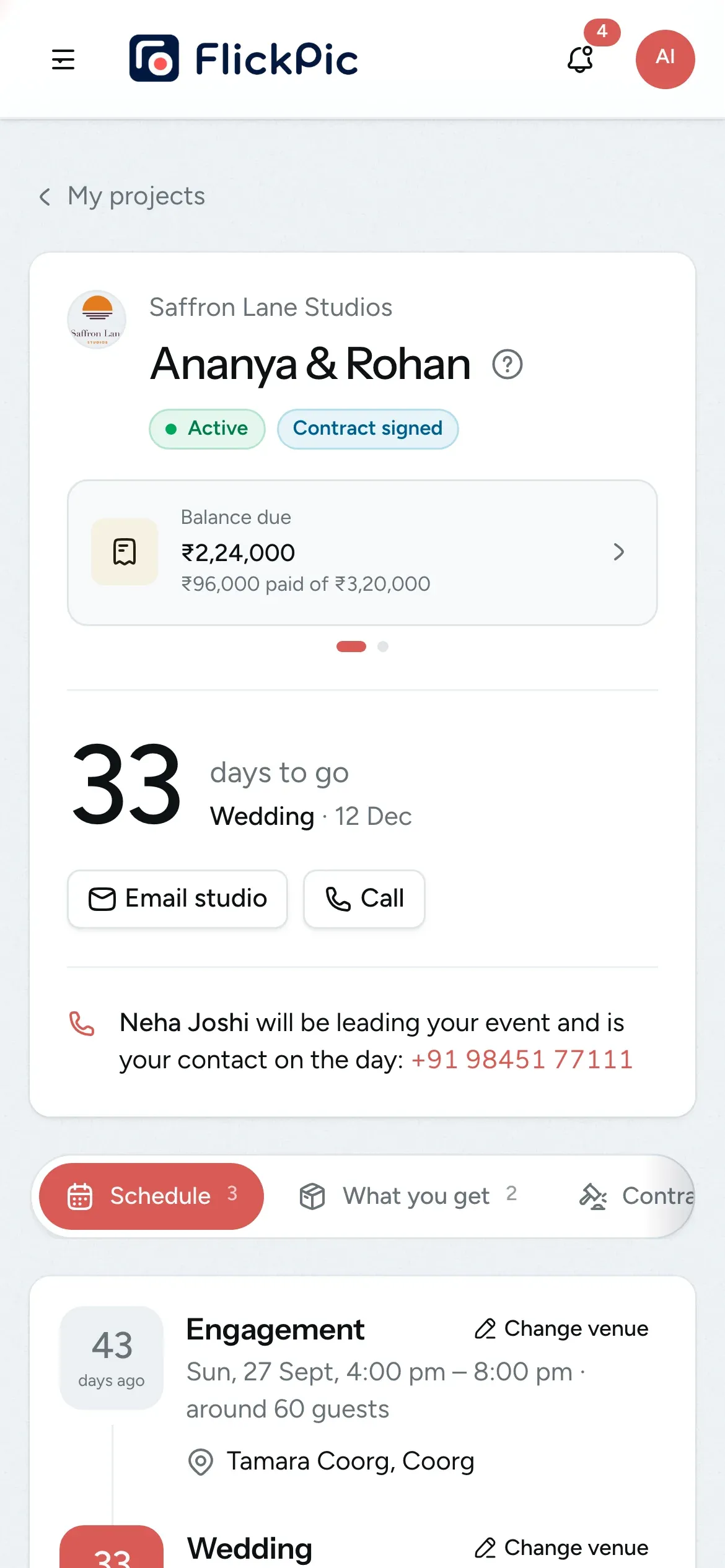
- Client schedule in the portal
- See what your client sees
What Projects does
-
Every booking becomes a project
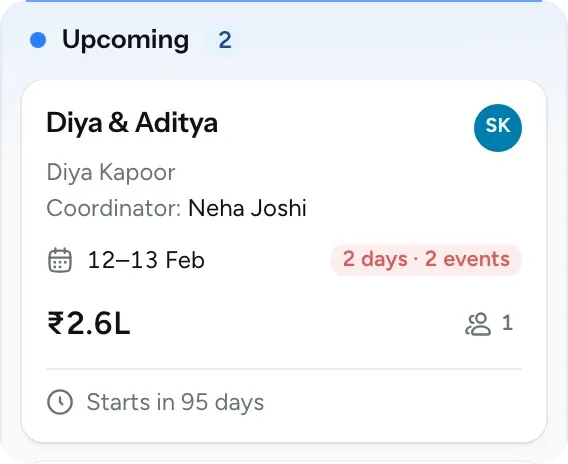
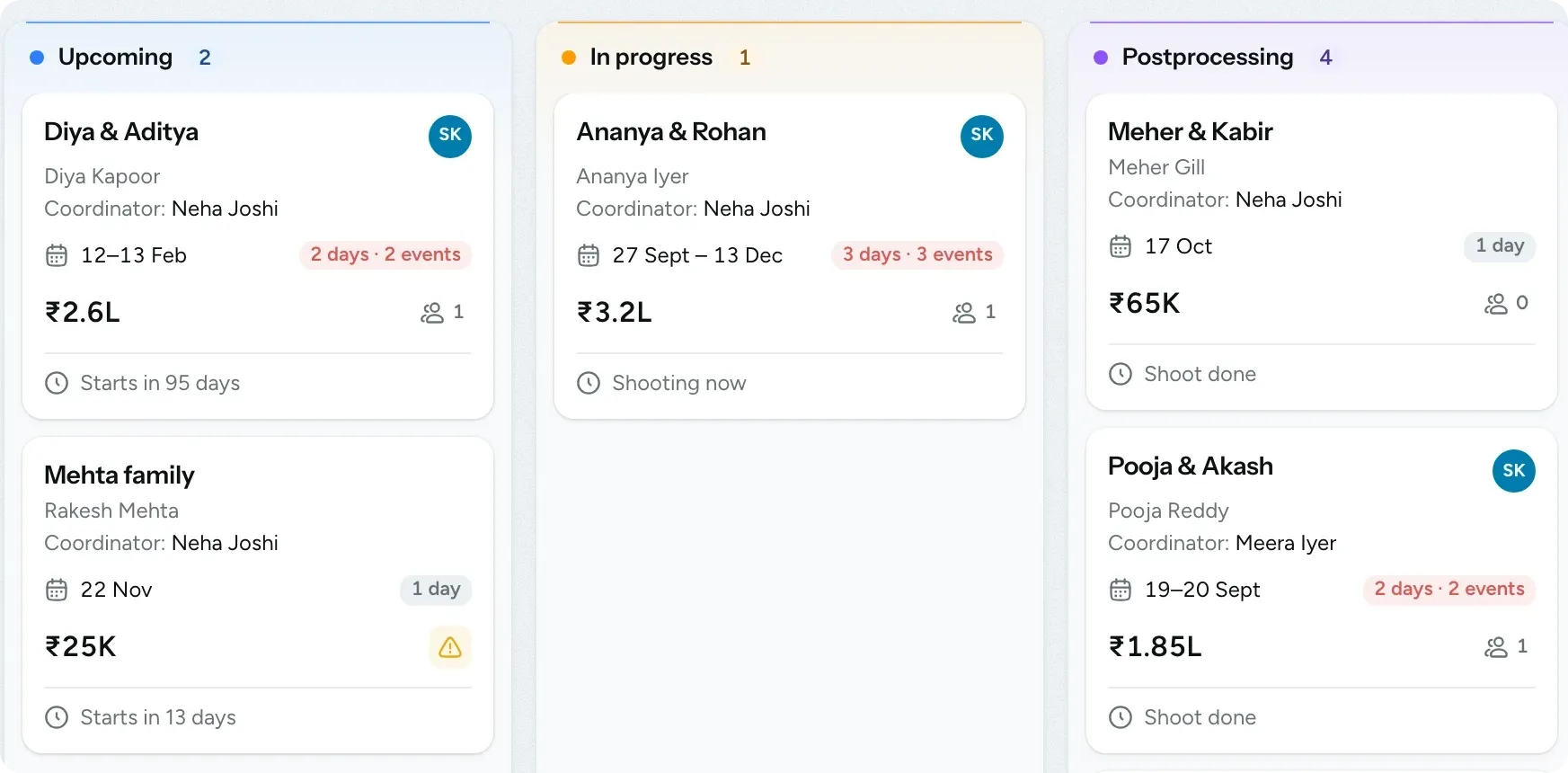
Booked enquiries appear on the projects board, and their cards move to the next stage automatically as the shoot dates pass.
- Cards move through Upcoming, In progress, Postprocessing and Completed
- Use separate boards for weddings and commercial work on Pro and above
- You're warned when a shoot is coming up and has no crew
- Cancelled projects keep a note of the reason
-
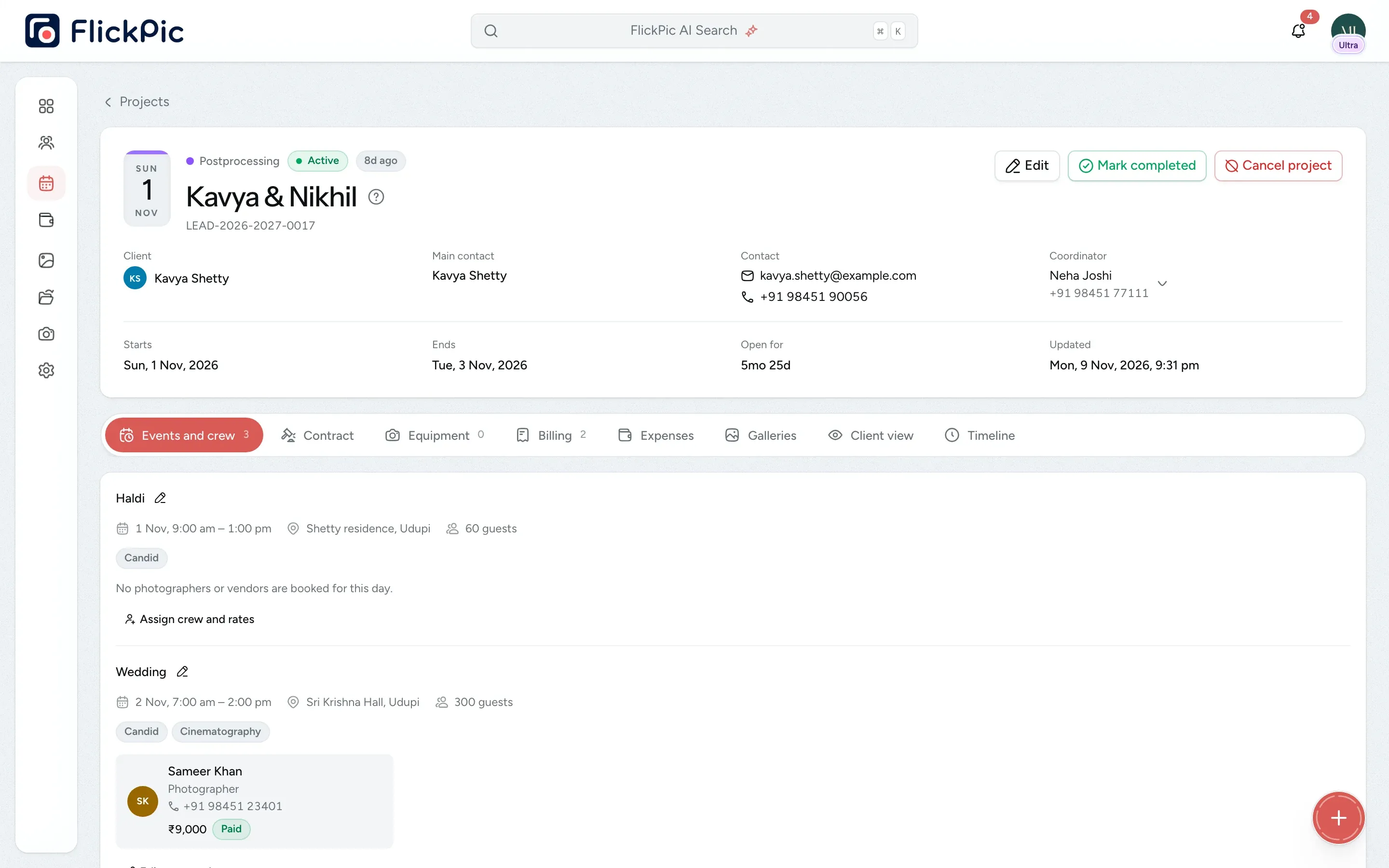
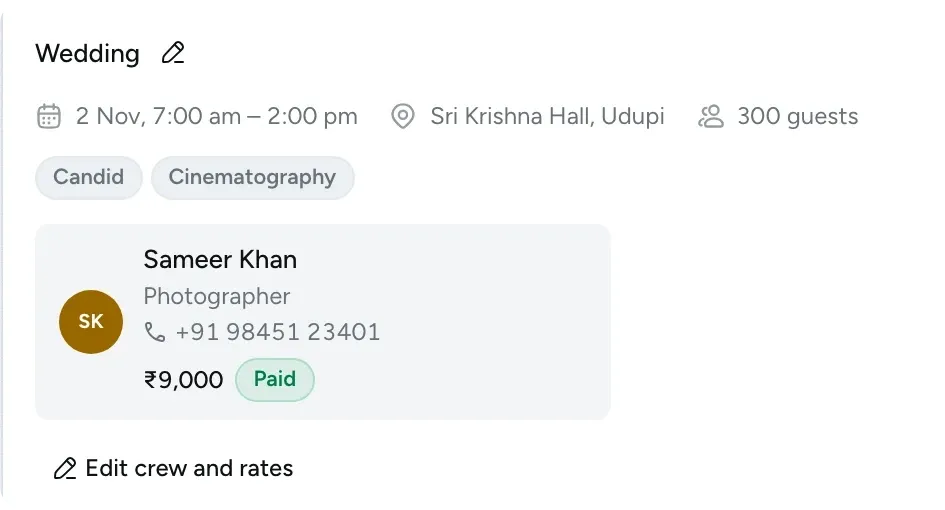
Assign crew to each shoot
Choose photographers and second shooters for each event from your saved list, and assign a teammate as the project's coordinator. If someone is already booked on that day, you'll see a warning.
- Each person's role and rate appear beside their name
- Every project card shows the crew count
-
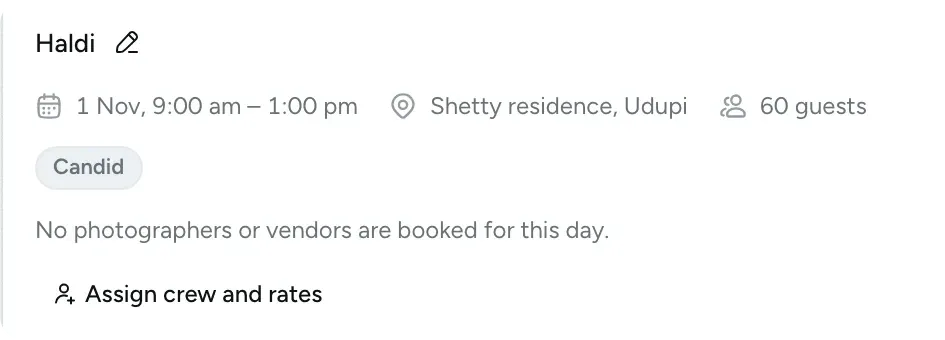
Add vendors to each event day
Add each vendor to the day they're working, such as the decorator for the haldi or the DJ for the reception. Vendors are listed alongside the crew.
- Keep a saved list of vendors and what each one does
- Vendors appear on your client's schedule
- They also appear on the enquiry
-
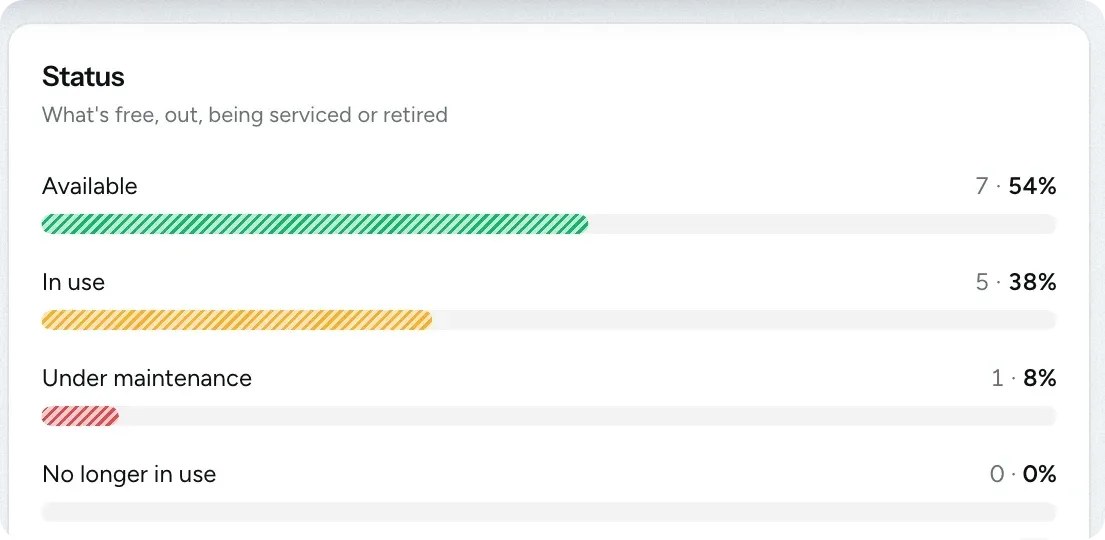
Assign equipment to each shoot
Choose the cameras, lenses and lights for each shoot from your equipment list. Later, you can check exactly which equipment went out on each job.
- The project card shows how many items are assigned
- The same item can be assigned to several projects
- Each item keeps its service history
-
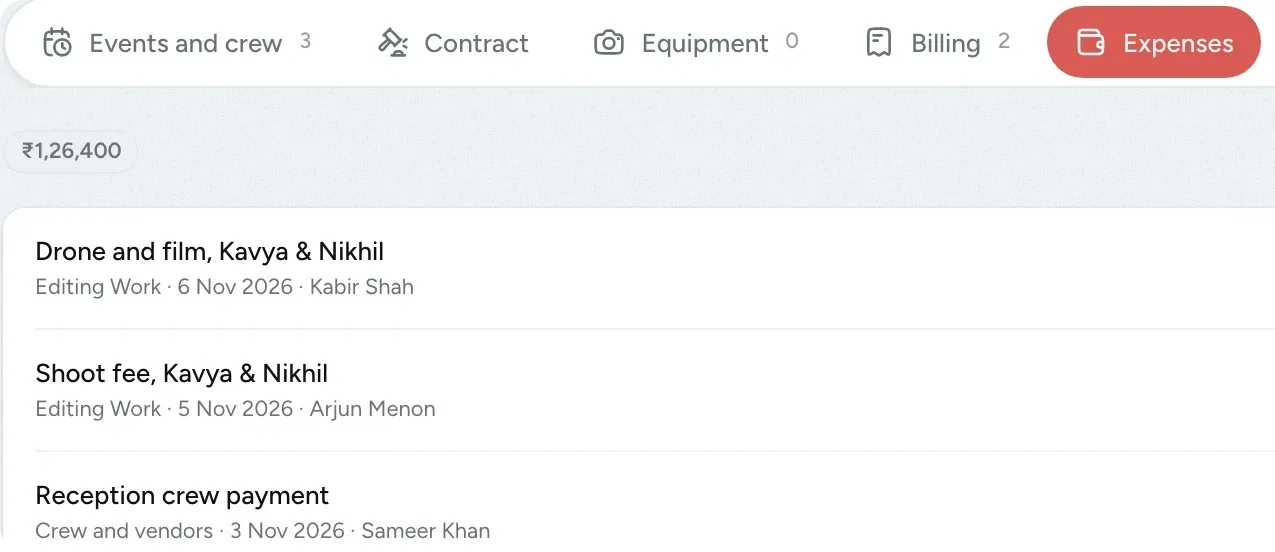
Track the costs of each job
Add travel, crew payments and other costs to the project, along with their receipts. The Expenses tab shows a running total.
- Crew rates are added as expenses once they're paid
- Totals are shown separately for each currency
- Open the full finance view in one click
-
See every shoot day on a calendar
Every event appears on the projects calendar in the colour of its stage, and open enquiries are shown as dashed bars so you can plan around them. Click an event to see its venue, crew and times.
- A three-day wedding appears as a single bar
- Crew clashes are marked in yellow
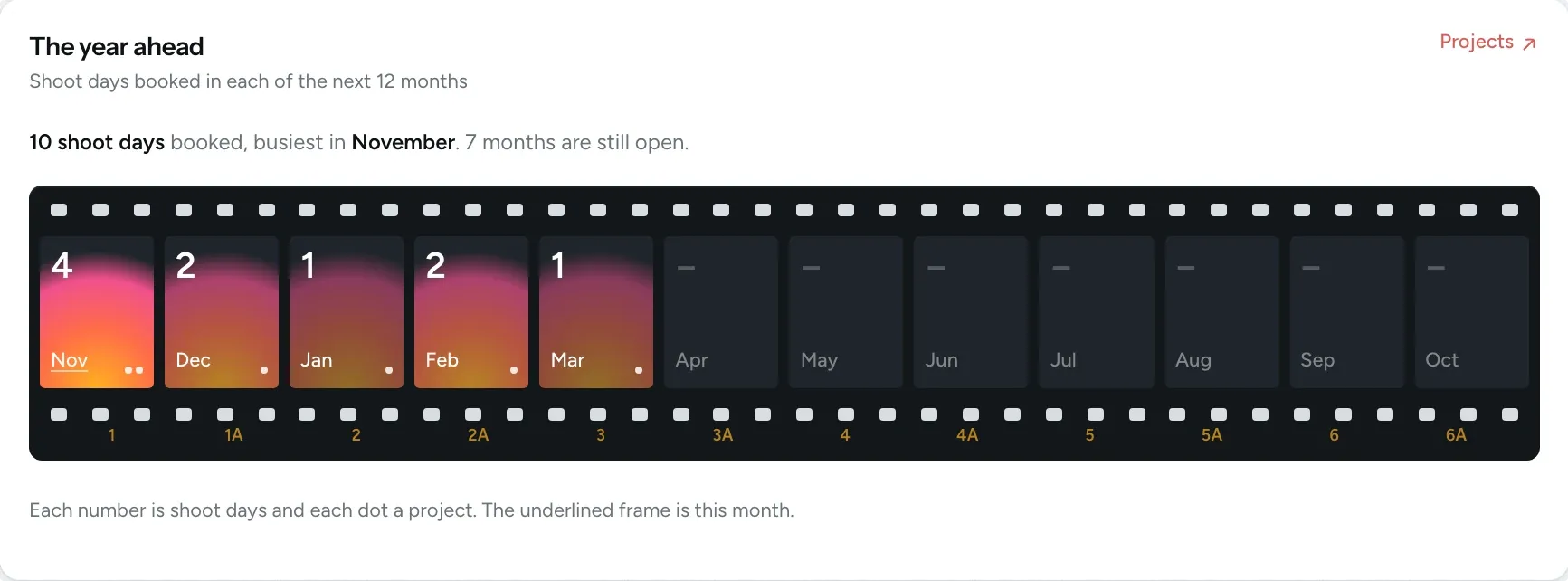
- Your dashboard shows the year ahead
- Time tracking in development
The contract and a timeline of every step
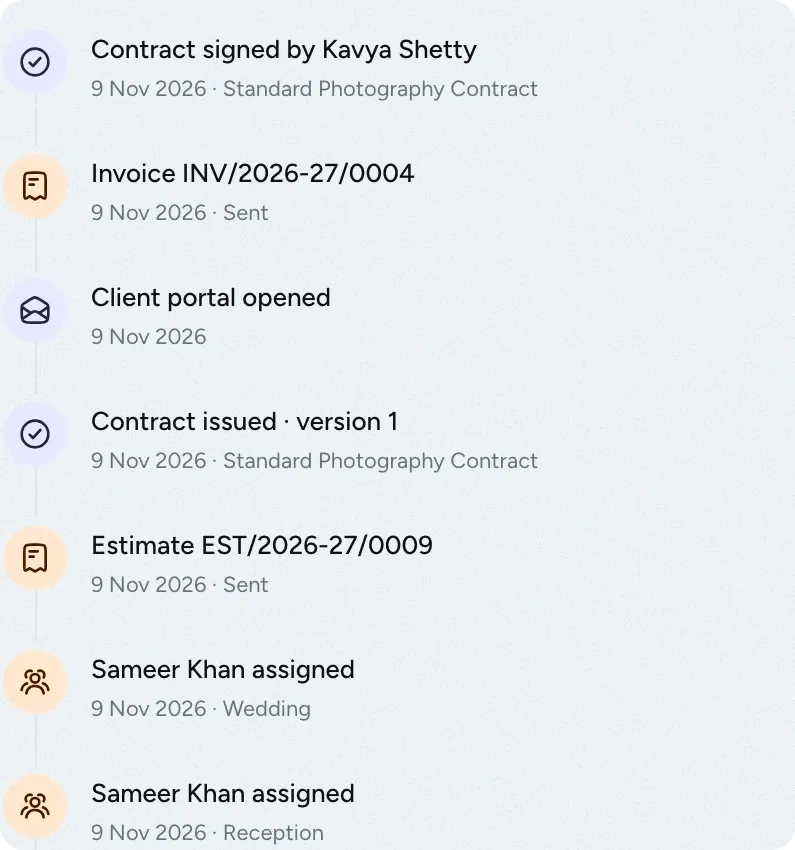
The signed contract is kept with the project, and the timeline records each step as it happens, such as sending the estimate or assigning crew. Time tracking is still in development.
- The signed contract has its own tab
- Client portal visits appear on the timeline too
- Time tracking for each project and teammate is coming later
Share each event's schedule with your client
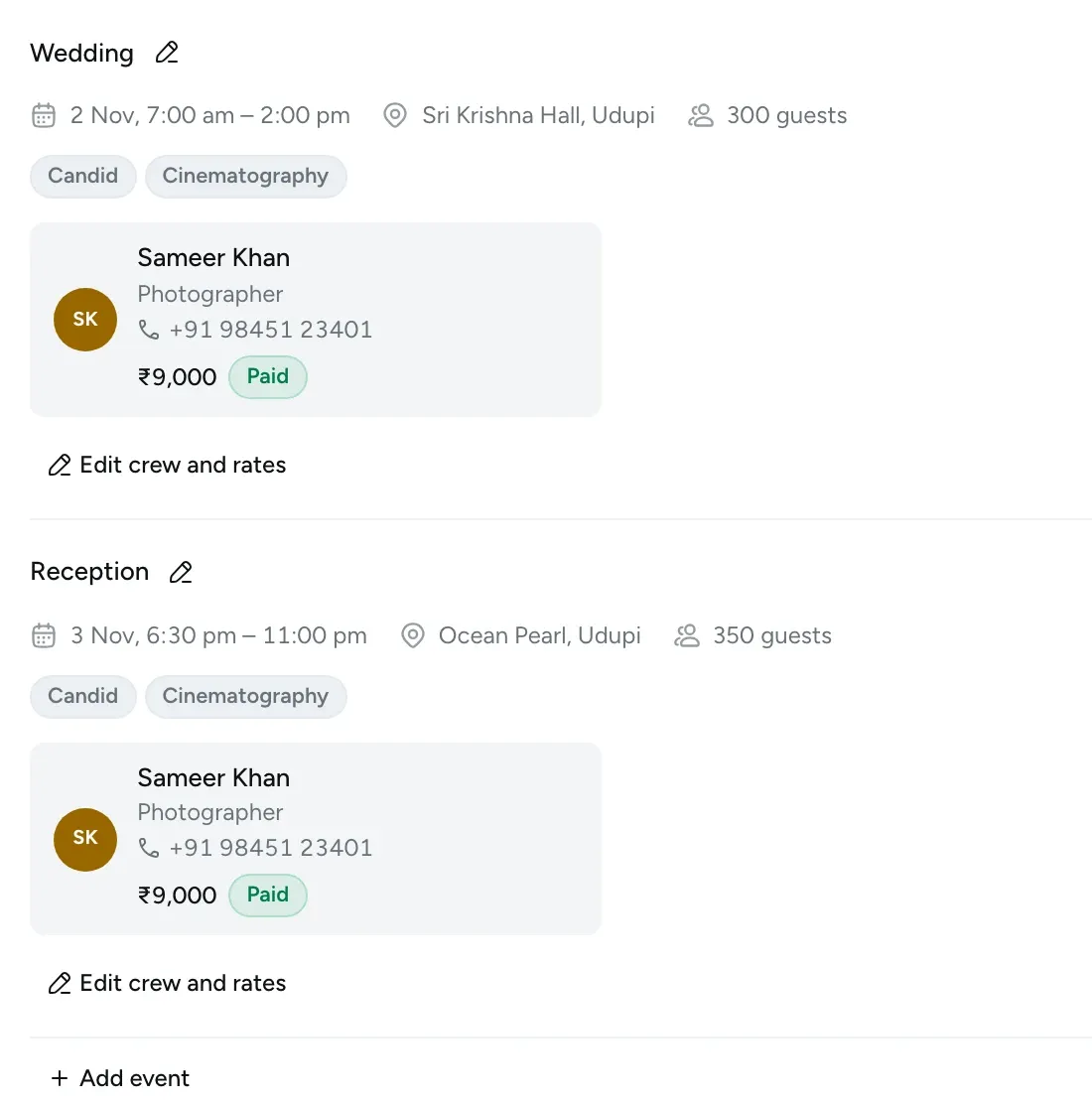
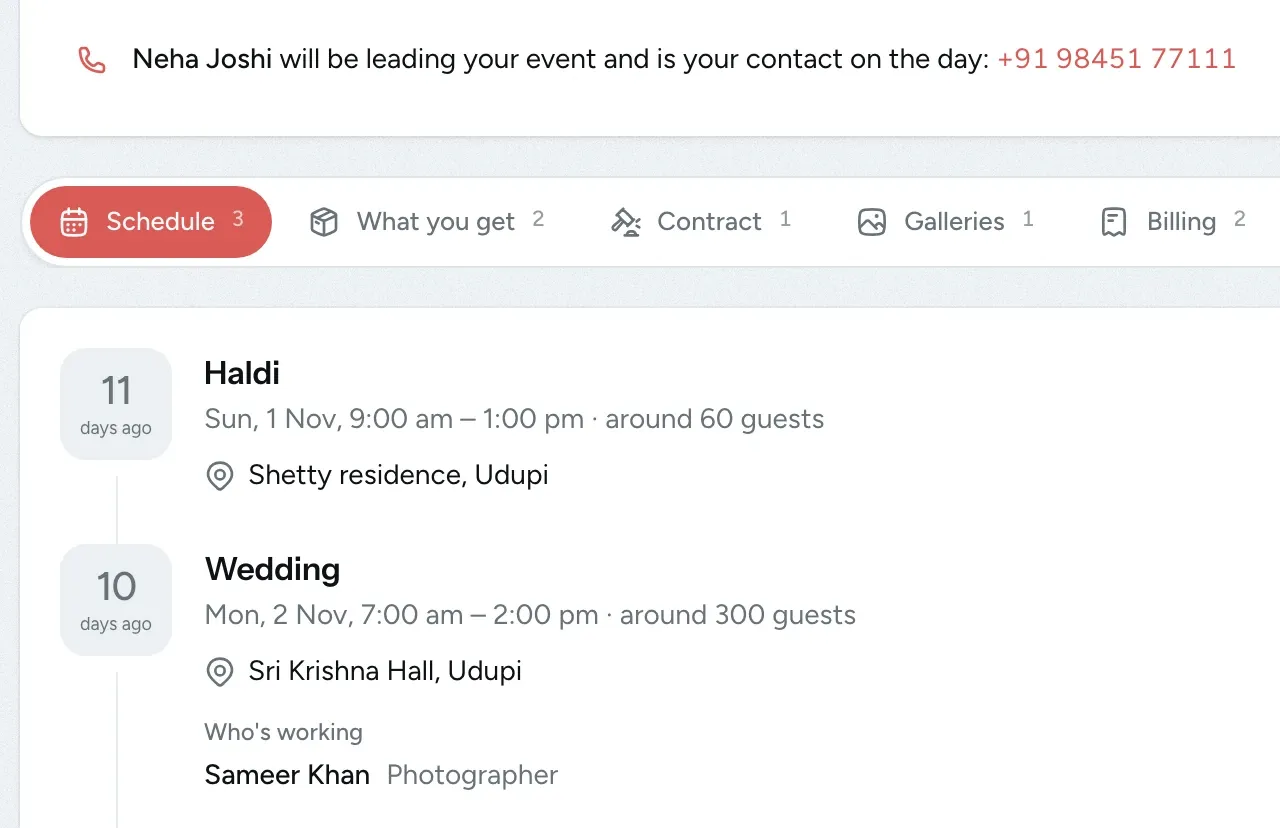
Each event on a project has its own time, venue, guest count, services and crew. Your client sees the same events in their portal, along with the name and phone number of the coordinator who will lead the day.
- Crew phone numbers and rates stay private to your studio
- Clients see each crew member's name and role only
- Clients can add venue details and a map link
Questions about projects
Questions studios often ask before they start using this feature.
Email us another question-
They can only change the venue details for each event: the venue name, a map link and a contact person at the venue. You get an email when they make a change. For anything else, they need to contact you.
-
Yes, if you are the studio owner. Client view opens the portal exactly as your client sees it, even before they sign the contract. It is view-only, your client is not notified, and it closes automatically after 30 minutes.
-
Yes, cards move according to the event dates. A project moves to In progress when its first event starts and to Postprocessing once all its events are over. You decide when it's finished by marking it as completed.
-
No. Your client sees each person's name and role but never their phone number, and contacts your studio to reach them. In the same way, your photographers get the client's name but not their phone number.
-
Cancel the project with a reason, and the enquiry it came from is marked as lost. Expenses you added stay in your finance records, and you can restore the project if the job goes ahead after all. Your client can still view the project as a read-only record.
Experience FlickPic
Bring a real enquiry to a free 30-minute call. We'll take it all the way to a client gallery in FlickPic with you and answer your questions along the way.